
Last quarter, a fast-growing SaaS company watched their conversion rate drop 23% overnight. The culprit? An untested plugin update that broke their checkout flow during a major product launch. The fix took 18 hours—18 hours of lost revenue, frustrated customers, and emergency developer calls.
This scenario plays out daily across thousands of WordPress websites. Yet it’s entirely preventable with a structured maintenance approach.
With over 43% of all websites powered by WordPress, it remains the world’s most popular CMS platform. Its flexibility, extensive plugin ecosystem, and open-source nature make it ideal for everything from simple blogs to complex e-commerce platforms. But this same flexibility creates a maintenance challenge: with great power comes great responsibility.
The truth is, WordPress websites aren’t “set and forget” solutions. They’re living systems that require regular care to perform optimally. Poor maintenance doesn’t just risk downtime—it erodes SEO rankings, slows page speed, creates security vulnerabilities, and ultimately costs you customers.
According to recent studies, 53% of mobile users abandon sites that take longer than three seconds to load, and websites with outdated security measures are 300% more likely to experience breaches. The cost of neglect far exceeds the investment in proper maintenance.
Whether you’re a marketing director managing multiple campaigns, an e-commerce manager protecting customer data, or a founder scaling your startup, this guide will show you exactly how to maintain your WordPress website for peak performance, security, and growth.
Introduction to WordPress Website Maintenance
WordPress website maintenance is the ongoing process of keeping your WordPress site secure, up-to-date, and performing at its best. Just like any high-performing machine, your WordPress website needs regular attention to prevent issues that can impact your business. Routine maintenance tasks—such as updating the WordPress core, plugins, and themes—are essential for closing security gaps and ensuring compatibility with the latest web standards. Search engines reward well-maintained sites with higher search engine rankings, as they favor websites that are fast, secure, and free of broken links. Neglecting maintenance can lead to slow page speeds, site crashes, and vulnerabilities that put your data and reputation at risk. By making WordPress maintenance a priority, you not only protect your investment but also provide a seamless experience for your visitors and customers.
The Real Cost of Poor WordPress Maintenance
Before diving into the how-to, let’s establish why maintenance matters:
- Downtime costs: For e-commerce sites, one hour of downtime can cost 0.1-0.5% of monthly revenue
- Security breaches: The average cost of a data breach is $4.35 million, with small businesses facing $120,000+ in recovery costs
- SEO penalties: Google downgrades slow sites (>3 seconds) and those with security issues, reducing organic traffic by 20-50%
- Conversion impact: Every one-second delay in page load time reduces conversions by 7%
- Brand damage: 88% of users won’t return to a website after a bad experience
The maintenance cost for a WordPress website is often much lower than the potential losses from downtime, security breaches, or SEO penalties.
Site owners who invest in regular maintenance avoid these high costs and risks.
Now, let’s explore how to prevent these scenarios with a comprehensive maintenance strategy.
Creating a Maintenance Plan
A solid maintenance plan is the backbone of effective WordPress website management. This plan outlines all the essential maintenance tasks and how often they should be performed—whether daily, weekly, or monthly. Key elements of a maintenance plan include updating the wordpress core, plugins, and themes to keep your site secure and compatible with new features. Regular monitoring of uptime and running security scans help catch issues before they escalate. Don’t forget to schedule database optimization and performance optimization to keep your site running efficiently. By following a structured maintenance plan, you ensure that your WordPress website receives consistent care, reducing the risk of unexpected downtime and keeping your site in top shape for both users and search engines.
1. Establish Continuous Performance Monitoring
Effective maintenance starts with visibility. You can’t fix what you can’t measure.
Set Up Your Monitoring Stack
Google Analytics 4 provides comprehensive website analytics, offering insights into user behavior, traffic sources, bounce rates, and conversion paths. Configure custom alerts for unusual traffic drops or spikes that might indicate technical issues.
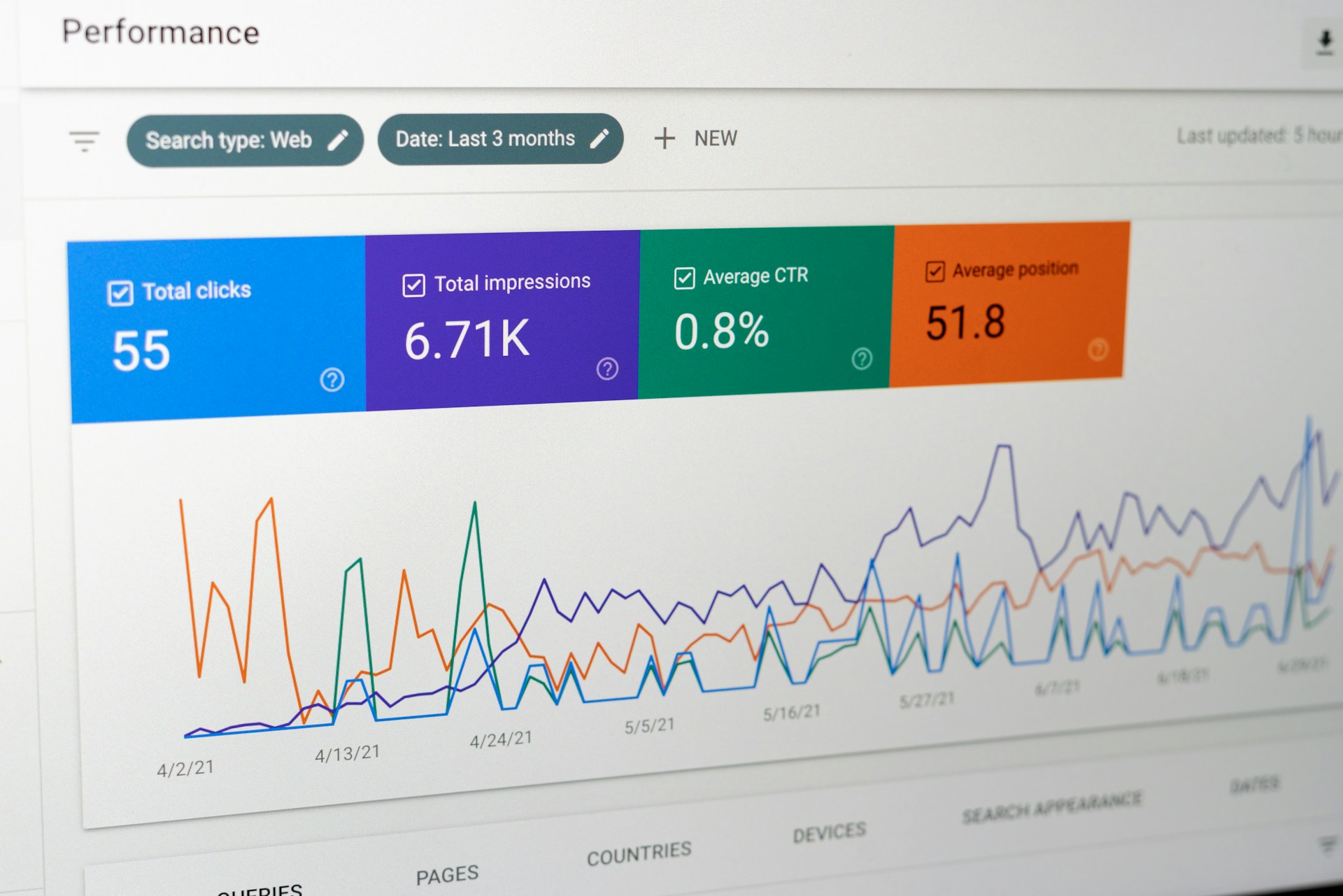
Google Search Console focuses on your search presence, showing keyword rankings, crawl errors, mobile usability issues, and security problems. Enable email notifications to catch issues within 24 hours of detection.
Create a Monitoring Dashboard
Track these five critical metrics weekly:
- Page load speed (target: under 3 seconds on mobile)
- Uptime percentage (target: 99.9%+)
- Security scan results (target: zero vulnerabilities)
- Organic traffic trends (monitor for sudden drops)
- Core Web Vitals (LCP, FID, CLS scores)
Monitoring your site’s performance with these website analytics tools is essential for identifying issues early and ensuring your site remains healthy and optimized.
Pro Tip: Set up a simple spreadsheet or use a tool like Google Data Studio to create a weekly automated report. Spend 30 minutes every Monday reviewing these metrics. This proactive approach helps you spot patterns before they become problems.
For e-commerce sites, also monitor transaction completion rates, cart abandonment, and checkout flow performance. A sudden spike in cart abandonment often signals a technical issue rather than a pricing problem.
2. Implement a Bulletproof Backup Strategy
Backups are your insurance policy. Without them, a single mistake or security breach could destroy months or years of work. Regular backups are a core part of WordPress website maintenance, ensuring you always have a recent restore point if something goes wrong.
The 3-2-1 Backup Rule
- 3 copies of your data (original + 2 backups)
- 2 different storage types (local + cloud)
- 1 off-site backup (separate from your hosting server)
Backup Frequency Guidelines
- E-commerce sites: Daily automated backups (customer and transaction data changes constantly)
- High-traffic blogs: 2-3 times weekly (frequent content updates)
- Corporate websites: Weekly backups (less frequent changes)
- Portfolio/brochure sites: Bi-weekly or monthly (minimal updates)
What to Back Up
Your website backups should include:
- Complete WordPress database
- All site’s files (themes, plugins, uploads)
- wp-config.php file (contains critical configuration)
- .htaccess file (controls permalinks and redirects)
Automated Backup Solutions
Most quality hosting providers offer automated backups, but don’t rely solely on your host. Use a dedicated backup plugin like UpdraftPlus, BackupBuddy, or VaultPress for redundancy. Store backup files in multiple locations: Amazon S3, Google Drive, or Dropbox. For added security, always keep at least one copy of your backup files off-site.
Test Your Backups
Here’s what most people miss: 40% of backups fail when you actually need them. Test your backup restoration process quarterly on a staging site to ensure everything works when disaster strikes. Backups act as a safety net, allowing you to recover quickly from disasters like hacking, accidental deletion, or site failure.
3. Choose Performance-Optimized Hosting
Your hosting provider is the foundation of your website’s performance. Cheap hosting might save $10 monthly but cost thousands in lost conversions. Choosing a reliable web host is crucial for ensuring your WordPress website remains secure, fast, and consistently available.
What Quality Hosting Provides
- Fast server response times (under 200ms)
- Automated daily backups with easy restoration
- Built-in security measures (firewalls, malware scanning)
- Staging environments for testing updates
- CDN integration for global content delivery
- Automatic scaling during traffic spikes
- Expert support available 24/7
Red Flags of Poor Hosting
- Shared hosting with unlimited sites (overselling resources)
- Frequent unexplained downtime
- Slow support response times (>24 hours)
- No staging environment options
- Limited or no backup solutions
Hosting Performance Impact
A case study from a B2B software company showed that migrating from budget shared hosting to managed WordPress hosting reduced page load times from 4.2 seconds to 1.8 seconds—resulting in a 34% increase in demo requests within 60 days.
For growing businesses, managed WordPress hosting from providers like WP Engine, Kinsta, or Cloudways offers the best balance of performance, security, and support. The investment typically pays for itself through improved conversion rates alone.
4. Maintain Enterprise-Grade Security
WordPress powers 43% of the web, making it a prime target for attackers. But here’s the reality: 98% of WordPress security vulnerabilities come from plugins, themes, and weak passwords—not WordPress core itself. Proactive maintenance is essential to prevent security breaches before they occur.
The Three-Layer Security Protocol
Layer 1: Access Control
- Use strong, unique passwords (minimum 16 characters, random combinations)
- Enable two-factor authentication (2FA) for all admin accounts
- Limit login attempts (lock out after 3-5 failed attempts)
- Change passwords quarterly
- Remove unused user accounts immediately
- Use unique usernames (never “admin”)
- Secure the login page against brute-force attacks by enabling login lockdown features and enforcing strong password policies
Layer 2: Active Monitoring Install a security plugin like Wordfence, Sucuri Security, or iThemes Security to:
- Scan for malware and vulnerabilities weekly
- Run regular malware scans as part of your security protocol to detect and prevent infections
- Monitor file changes and unauthorized access attempts
- Block malicious IP addresses automatically
- Provide firewall protection
- Send real-time security alerts
Layer 3: Preventive Measures
- Install an SSL certificate (HTTPS is mandatory for trust and SEO)
- Hide your WordPress version number
- Disable file editing in wp-config.php
- Protect wp-config.php and .htaccess files
- Use security keys and salts in wp-config.php
- Disable XML-RPC if not needed (common attack vector)
- Outdated plugins or themes can create security holes, so always keep them updated to minimize vulnerabilities
Security Incident Response Plan
Despite best efforts, breaches happen. Have a plan:
- Take the site offline immediately
- Restore from clean backup
- Change all passwords
- Scan for malware thoroughly
- Identify and patch the vulnerability
- Monitor closely for 30 days post-incident
Real-World Impact: A mid-sized e-commerce retailer ignored security warnings about an outdated plugin. The resulting breach exposed 12,000 customer records, cost $180,000 in recovery and legal fees, and damaged their reputation for years. The plugin update would have taken 10 minutes.
5. Master the WordPress Core Update-Test-Deploy Workflow
Here’s a critical clarification: WordPress does automatically update for minor security releases (e.g., 6.4.1 to 6.4.2). However, major version updates, plugins, and themes require manual updates by default—though you can enable auto-updates for these as well since WordPress 5.6. Updates to core, themes, and plugins can be managed directly through the WP Admin area, which is accessible via the WordPress dashboard. The WordPress dashboard provides a central location for managing all updates and maintenance tasks.
The Problem with Automatic Updates
While convenient, automatic updates can break your site if:
- A plugin conflicts with your theme
- A theme update changes critical styling
- A WordPress core update isn’t compatible with older plugins
- An update introduces new bugs (rare but happens)
The Safe Update Process
Step 1: Preparation
- Create a full backup before any updates
- Check plugin/theme changelogs for breaking changes
- Review compatibility with your current WordPress version
- Schedule updates during low-traffic periods (check Analytics)
Step 2: Staging Environment Testing
- Create a staging copy of your live site
- Update WordPress core first
- Update plugins one at a time
- Update theme last
- Test critical functionality: forms, checkout, navigation, mobile responsiveness
Step 3: Production Deployment
- Deploy updates during maintenance window
- Monitor site for 30 minutes post-update
- Check error logs for issues
- Test from multiple devices and browsers
Update Priority Order
- Security updates: Apply immediately (within 24-48 hours)
- WordPress core updates: Apply within one week
- Plugin updates: Apply within two weeks
- Theme updates: Apply within one month (unless security-related)
Plugin Management Best Practices
- Limit active plugins to 20 or fewer (each adds processing overhead)
- Delete unused plugins completely (don’t just deactivate)
- Regularly review and update all themes and plugins to reduce vulnerabilities and improve performance.
- Only use plugins with 10,000+ active installations and recent updates
- Check plugin reviews and support forum responsiveness
- Avoid plugins that haven’t been updated in 12+ months
- Keep all third party plugins up-to-date to prevent compatibility and security issues.
6. Optimize Database Performance
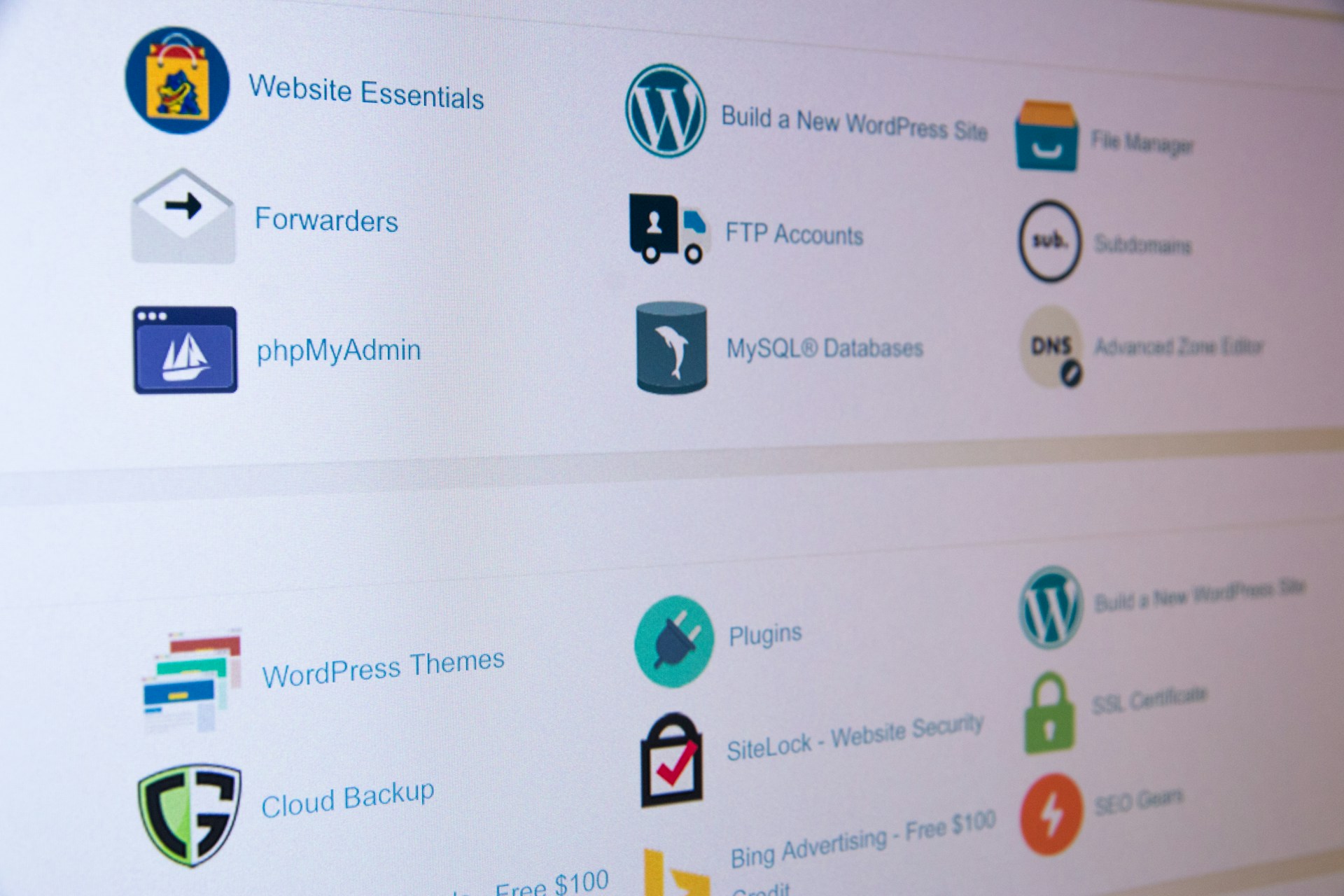
Your WordPress database stores everything: posts, pages, comments, user data, plugin settings, and more. Over time, it accumulates digital clutter that slows queries and page loads.
Database Bloat Sources
- Post revisions (WordPress saves every draft)
- Spam and trashed comments
- Transient options (temporary cached data)
- Orphaned metadata (from deleted posts/plugins)
- Auto-drafts and deleted items
Monthly Database Cleanup Checklist
Use plugins like WP-Optimize or Advanced Database Cleaner to:
- Remove post revisions older than 30 days
- Delete spam and trashed comments
- Clear expired transients
- Optimize database tables
- Remove orphaned post metadata
Database Optimization Results
A B2B SaaS company with a three-year-old WordPress blog reduced their database size from 847MB to 312MB through cleanup—resulting in 40% faster query times and 0.8-second improvement in page load speed.
Comment Spam Management
Enable Akismet or a similar anti-spam plugin, and create a comment blacklist:
- Go to Settings → Discussion
- Add spam trigger words, phrases, and email patterns
- Enable comment moderation for first-time commenters
- Consider disabling comments on old posts (spam targets)
7. Achieve Sub-3-Second Page Load Times
Page speed isn’t just about user experience—it’s a direct ranking factor for Google and a conversion driver. Amazon found that every 100ms of latency costs them 1% in sales.
Speed Optimization Essentials
Image Optimization Images typically account for 50-70% of page weight. Before uploading:
- Resize images to display dimensions (don’t upload 4000px images for 800px displays)
- Compress images to under 200KB each
- Use modern formats (WebP offers 25-35% smaller file sizes than JPEG)
- Implement lazy loading (images load only when scrolling into view)
- For optimal site performance and when choosing a platform, consider how WordPress, Webflow, or Shopify compare in terms of image handling and website optimization.
Use plugins like Smush, ShortPixel, or Imagify for automated optimization.
Caching Implementation
Caching stores static versions of your pages, dramatically reducing server processing:
- Page caching: Stores complete HTML pages
- Browser caching: Tells browsers to store assets locally
- Object caching: Stores database query results
Install WP Rocket, W3 Total Cache, or WP Super Cache to enable comprehensive caching.
Content Delivery Network (CDN)
A CDN distributes your content across global servers, delivering files from the location nearest to each user. This can reduce load times by 50%+ for international visitors.
Popular options: Cloudflare (free tier available), StackPath, or KeyCDN.
Code Optimization
- Minify CSS, JavaScript, and HTML (remove unnecessary characters)
- Combine multiple CSS/JS files to reduce HTTP requests
- Defer non-critical JavaScript loading
- Remove unused CSS and JavaScript
Performance Budget
Set these limits and audit monthly:
- Maximum page size: 2MB (3MB for product pages)
- Maximum HTTP requests: 50 per page
- Time to First Byte (TTFB): Under 600ms
- Largest Contentful Paint (LCP): Under 2.5 seconds
Use automated tools to regularly check for both performance and accessibility issues, but remember that manual review is also important to catch problems automated checks might miss.
8. Maintain SEO Performance
Technical SEO maintenance ensures search engines can crawl, index, and rank your content effectively. Incorporating a structured WordPress maintenance checklist or maintenance checklist for SEO is essential to ensure all critical WordPress maintenance tasks are performed regularly, keeping your website secure, functional, and optimized.
Monthly SEO Maintenance Tasks
Fix Crawl Errors
- Check Google Search Console weekly for crawl errors
- Fix 404 errors within 48 hours using 301 redirects
- Resolve broken internal links
- Submit updated sitemap after major changes
Monitor Core Web Vitals Google’s Core Web Vitals are ranking factors:
- Largest Contentful Paint (LCP): Under 2.5 seconds
- First Input Delay (FID): Under 100 milliseconds
- Cumulative Layout Shift (CLS): Under 0.1
Address issues flagged in Search Console’s Core Web Vitals report.
Content Freshness Strategy — Keep your website up-to-date and engaging with ongoing support and expert WordPress design and development services.
Search engines favor fresh, updated content:
- Monthly: Review Search Console for declining pages and refresh content
- Quarterly: Update your top 20 traffic-driving pages with new data, examples, or sections
- Bi-annually: Audit blog posts older than 12 months—update or delete bottom performers
Technical SEO Checklist
- Ensure XML sitemap is current and submitted
- Verify robots.txt isn’t blocking important pages
- Check that canonical tags are properly implemented
- Confirm mobile-friendliness (60%+ of traffic is mobile)
- Validate structured data markup (schema.org)
- Monitor page indexation status
- Review website security best practices to reduce the risk of getting hacked
Keyword Performance Tracking
- Track rankings for your top 20 target keywords monthly
- Identify pages losing rankings and investigate causes
- Update meta titles and descriptions for pages with low click-through rates
- Expand content on pages ranking positions 11-20 (page 2) to push them to page 1
By following a comprehensive WordPress maintenance checklist and regularly performing these WordPress maintenance tasks, you can ensure your website remains healthy, secure, and optimized for search engines.
9. Execute Quarterly Content Audits
Content audits prevent your website from becoming a digital junkyard while improving SEO performance.
The Quarterly Audit Process
Q1: Blog Post Audit
- Export all blog posts with traffic and engagement data
- Identify bottom 20% performers (low traffic, high bounce rate)
- Decide: Update, consolidate, or delete each post
- Update posts with new data, examples, and improved formatting
- Add internal links to newer related content
- Monitor RSS feeds or analytics to ensure readers are notified of new blog posts and to track their performance
Q2: Product/Service Pages Review
- Verify all information is current and accurate
- Update pricing, features, and specifications
- Refresh testimonials and case studies
- Optimize conversion elements (CTAs, forms)
- Check all product images and descriptions
Q3: Technical Link Audit
- Scan for broken internal links using Screaming Frog or Broken Link Checker
- Fix or remove broken external links
- Update outdated resource links
- Verify all downloadable resources are accessible
- Check that all images load properly
Q4: Landing Page Optimization
- Review conversion rates for all landing pages
- Update homepage with fresh content and current offers
- Refresh about page with recent achievements
- Verify contact information is accurate across all pages
- Test all forms and CTAs
Content Refresh ROI
A B2B software company refreshed 45 blog posts older than 18 months with updated statistics, new examples, and improved formatting. Results over the following six months:
- 67% increase in organic traffic to refreshed posts
- 34% improvement in average time on page
- 28% increase in conversion rate from organic traffic
10. Implement Automated Monitoring and Alerts
Manual checking is important, but automation ensures you catch issues immediately. Including these monitoring activities as part of your monthly tasks helps maintain consistent site performance and security.
Essential Automated Alerts
Uptime Monitoring Use UptimeRobot (free for 50 monitors) or Pingdom to:
- Check site availability every 5 minutes
- Alert via email/SMS when site goes down
- Track uptime percentage over time
- Monitor specific pages (checkout, login, key landing pages)
- Ensure reliability by monitoring uptime with a dedicated uptime monitoring service, so you can detect downtime quickly and respond before it impacts users
Security Alerts Configure your security plugin to notify you of:
- Failed login attempts (possible brute force attack)
- File changes (possible hack)
- New malware signatures detected
- Plugin/theme vulnerabilities discovered
Performance Degradation Alerts Set up alerts when:
- Page load time increases by 20%+ from baseline
- Core Web Vitals scores drop below thresholds
- Server response time exceeds 1 second
- Error rates spike above normal levels
SEO Issue Alerts Google Search Console can email you about:
- Manual penalties or security issues
- Significant ranking drops
- Indexing problems
- Mobile usability errors
- Core Web Vitals issues
Budgeting and Cost Considerations
Budgeting for WordPress website maintenance is an important step in ensuring your site remains secure and high-performing. The cost of maintenance can vary based on your website’s size, complexity, and the frequency of updates and security scans required. On average, monthly maintenance tasks—including updates, backups, and security scans—can range from $100 to $500, especially if you use premium plugins or advanced security services. It’s also important to factor in the value of your time and the potential cost of emergency repairs if maintenance is neglected. By investing in regular website maintenance, you can avoid expensive fixes, improve your site’s performance, and maintain a strong online presence that supports your business goals.
The Build vs. Buy Decision: When to Outsource Maintenance
At this point, you might be thinking: “This is comprehensive, but do I have time for all this?”
Let’s do the math. Proper WordPress maintenance requires:
- 2-4 hours weekly for monitoring and routine tasks
- 4-8 hours monthly for updates, optimization, and content audits
- 8-16 hours quarterly for deep audits and strategic improvements
Custom development needs, such as implementing unique features or modifications, can further increase the time and cost required for ongoing maintenance.
Total: 15-25 hours monthly for one website.
The In-House Cost
If you’re paying a developer $75-150/hour, that’s $1,125-3,750 monthly. For a marketing manager at $60-100/hour, it’s $900-2,500 monthly—time diverted from strategic initiatives.
The Traditional Agency Model
Project-based agencies typically charge:
- $2,000-5,000 for initial audit and setup
- $150-300/hour for ongoing maintenance and support
- Minimum monthly retainers of $2,000-5,000
- Additional charges for emergency fixes
Professional maintenance and support from agencies ensures your website remains secure, up-to-date, and optimized, reducing the risk of downtime or vulnerabilities.
The Subscription Model Alternative
Modern subscription-based agencies offer unlimited requests with:
- Fixed monthly pricing ($5,000-12,500 depending on service tier)
- Access to senior specialists across all disciplines
- 1-3 day turnaround on requests
- No per-hour charges or surprise fees
- Ability to scale by adding resources
These agencies often provide a comprehensive maintenance service or specialized WordPress maintenance services, handling updates, backups, security, and technical support for you. Investing in a paid service is especially valuable for businesses without in-house expertise, ensuring expert care and freeing up your team for other priorities.
For businesses managing multiple websites or requiring comprehensive services (design, development, CRO, and maintenance), the subscription model often delivers 2-3x more value than traditional alternatives. Consistent maintenance is essential for long-term website health, security, and performance.
Your WordPress Maintenance Action Plan
Website owners should follow this action plan to ensure their site remains secure and high-performing.
Here’s your implementable roadmap:
Week 1: Foundation
- Set up Google Analytics 4 and Search Console
- Install security plugin and run initial scan
- Create first complete backup
- Document current performance baseline (speed, uptime, traffic)
Week 2: Automation
- Configure automated daily backups
- Set up uptime monitoring with alerts
- Enable security alerts
- Create monitoring dashboard
Week 3: Optimization
- Audit and remove unused plugins/themes
- Optimize images on key pages
- Implement caching plugin
- Run initial database cleanup
Week 4: Process
- Create staging environment
- Document update workflow
- Schedule regular maintenance windows
- Set quarterly audit calendar
Ongoing Monthly Routine
- Week 1: Review monitoring dashboard, fix any issues
- Week 2: Update plugins and themes via staging
- Week 3: Database optimization and content review
- Week 4: Performance audit and optimization
Monthly tasks are essential for effective site maintenance, helping website owners keep their WordPress sites secure, up-to-date, and running smoothly.
Conclusion
WordPress website maintenance isn’t just about preventing problems—it’s about creating competitive advantage. Every second of load time you eliminate, every security vulnerability you patch, and every piece of content you optimize contributes to better user experience, higher search rankings, and increased conversions.
The companies that treat maintenance as a strategic growth initiative rather than a necessary evil consistently outperform competitors who neglect these fundamentals.
The question isn’t whether you can afford to invest in proper WordPress maintenance—it’s whether you can afford not to.
Ready to elevate your WordPress performance? Whether you’re building an in-house maintenance process or exploring subscription-based solutions, the key is starting now. Every day of delayed maintenance compounds technical debt and missed opportunities.
Need expert help with WordPress maintenance, optimization, or development? Book a consultation to discuss how subscription-based access to senior designers, developers, and CRO specialists can transform your WordPress website into a high-performing growth engine.

